Seat TESLA MODEL X 2016 Owner's Guide
[x] Cancel search | Manufacturer: TESLA, Model Year: 2016, Model line: MODEL X, Model: TESLA MODEL X 2016Pages: 179, PDF Size: 4.3 MB
Page 45 of 179

IndicatorDescriptionTire pressure warning. The pressure of a tire is out of range. If a fault with the
Tire Pressure Monitoring System (TPMS) is detected, the indicator flashes.For a TPMS fault, contact Tesla. See Tire Care and Maintenance on page 133.A door or trunk is open. See Front doors.A seat belt for an occupied seat is not fastened. See Seat Belts on page 21.The front passenger
Page 49 of 179
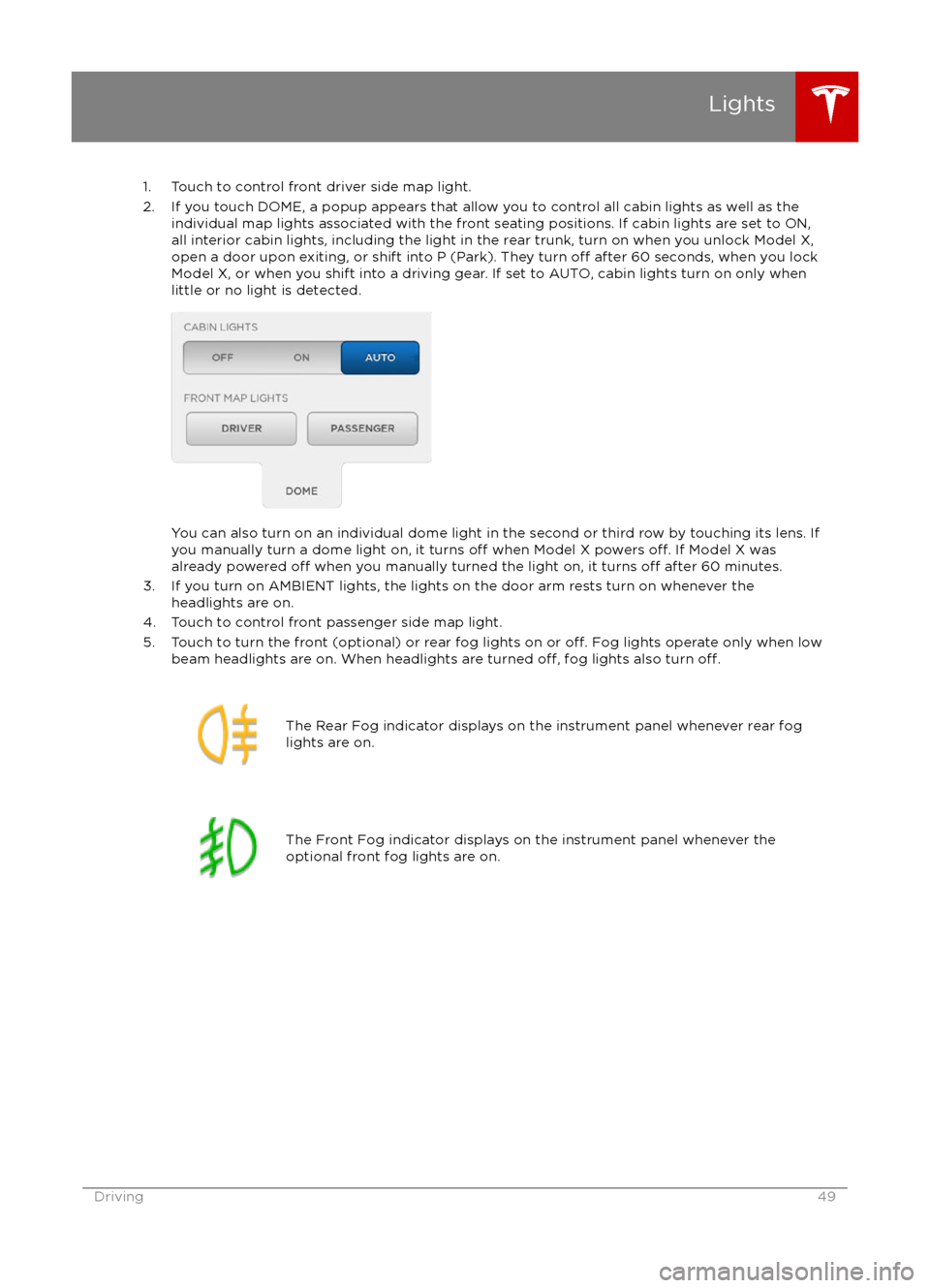
1. Touch to control front driver side map light.
2. If you touch DOME, a popup appears that allow you to control all cabin lights as well as the individual map lights associated with the front seating positions. If cabin lights are set to ON,all interior cabin lights, including the light in the rear trunk, turn on when you unlock Model X,open a door upon exiting, or shift into P (Park). They turn
off after 60 seconds, when you lock
Model X, or when you shift into a driving gear. If set to AUTO, cabin lights turn on only when
little or no light is detected.
You can also turn on an individual dome light in the second or third row by touching its lens. If
you manually turn a dome light on, it turns off when Model X powers off. If Model X was
already powered off when you manually turned the light on, it turns off after 60 minutes.
3. If you turn on AMBIENT lights, the lights on the door arm rests turn on whenever the headlights are on.
4. Touch to control front passenger side map light.
5. Touch to turn the front (optional) or rear fog lights on or
off. Fog lights operate only when low
beam headlights are on. When headlights are turned off, fog lights also turn off.
The Rear Fog indicator displays on the instrument panel whenever rear fog
lights are on.The Front Fog indicator displays on the instrument panel whenever the
optional front fog lights are on.Lights
Driving49
Page 100 of 179

5. Cold WeatherIf Model X is equipped with the optional cold weather package, you can control all seatheaters as well as the heated wipers and steering wheel. Heaters that are turned on are displayed in red. To turn
off all seat heaters, touch All Off. Note that you can also control the
front driver and passenger seats using the main climate control panel located on the bottom
of the touchscreen (see Climate Controls on page 105).
6. Trips
View and reset the trip meters that summarize how far you have driven (see Trip Information
on page 62).
7. Displays
Manually control the touchscreen
Page 105 of 179
Overview of Climate Controls
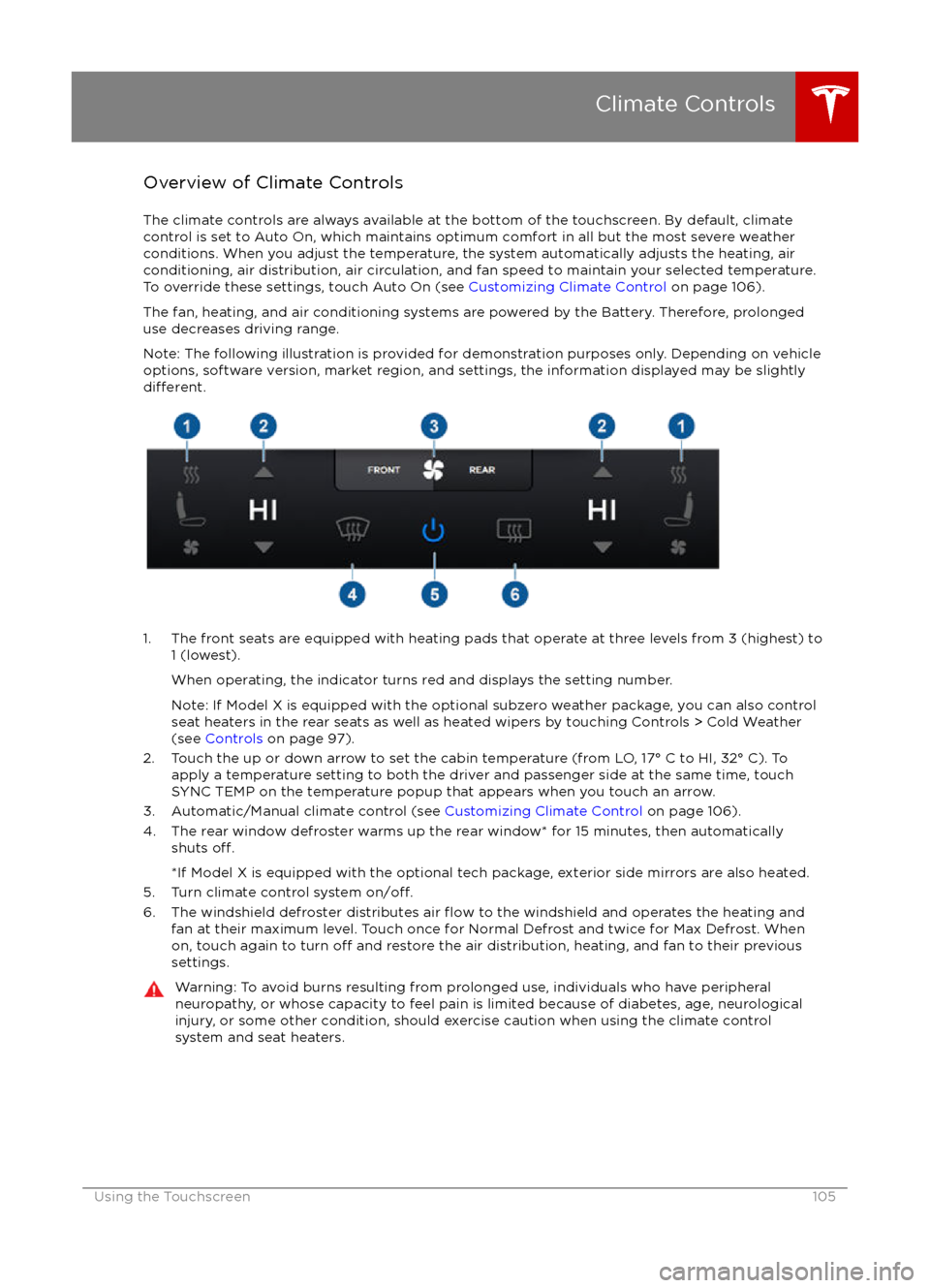
The climate controls are always available at the bottom of the touchscreen. By default, climate control is set to Auto On, which maintains optimum comfort in all but the most severe weather conditions. When you adjust the temperature, the system automatically adjusts the heating, air
conditioning, air distribution, air circulation, and fan speed to maintain your selected temperature. To override these settings, touch Auto On (see Customizing Climate Control on page 106).
The fan, heating, and air conditioning systems are powered by the Battery. Therefore, prolonged use decreases driving range.
Note: The following illustration is provided for demonstration purposes only. Depending on vehicle
options, software version, market region, and settings, the information displayed may be slightly
different.
1. The front seats are equipped with heating pads that operate at three levels from 3 (highest) to 1 (lowest).
When operating, the indicator turns red and displays the setting number.
Note: If Model X is equipped with the optional subzero weather package, you can also control seat heaters in the rear seats as well as heated wipers by touching Controls > Cold Weather
(see Controls on page 97).
2. Touch the up or down arrow to set the cabin temperature (from LO, 17
Page 106 of 179

Customizing Climate ControlThe climate control system is designed to automatically provide optimum comfort in most
situations. All you need to do is set the desired temperature, and the air conditioning, air
recirculation, air distribution, and fan speed automatically maintain your selected temperature.
To override the automatic setting, touch FRONT or REAR to customize individual settings for thefront or rear seating areas. Then touch the setting you want to change. Touch RESET AUTO tochange all settings on the panel back to their defaults. Or, you can touch associated with any
individual setting to change it back to its default.
Custom climate controls for the front seating area:
1. Touch RESET AUTO to change all settings on the currently displayed customization panel back to their default values.
2. Touch A/C ON or A/C OFF to turn the air conditioning on and
off, respectively. Turning it offreduces cooling, but saves energy.
Because Model X runs much quieter than a gasoline-powered vehicle, you may notice the
sound of the compressor as it is operating. To minimize noise, reduce the fan speed or
recirculate the air.
Climate Controls
106Model X Owner
Page 107 of 179

3. Choose how air is drawn into Model X:Outside air is drawn into Model X (see Ventilation on page 109).Air inside Model X is recirculated. This prevents outside air (traffic fumes)
from entering but reduces dehumidifying performance. Recirculating the
air is the most
efficient way to cool the front cabin area. To prevent the
windshield from fogging in some conditions, briefly change the setting
every hour to draw in outside air.
If you have purchased the optional HEPA (High Efficiency Particulate Air)filter, you can ensure the best possible quality of air inside the cabin.
When selected, outside air is drawn in and filtered through the medical-
grade HEPA filter in addition to the secondary filtration systems. The
HEPA filter is extremely effective at removing particles, including
pollution, allergens, bacteria, pollen, mold spores, and viruses. Both the
HEPA
filter and the secondary filtration system also contain activated
carbon to remove a broad spectrum of odors and gases. When you
engage the HEPA option, the fan operates at the highest speed. In
addition, the positive pressure inside the cabin minimizes the amount of
outside air that can leak into the vehicle.
Note: Some gases, such as carbon monoxide, are not
effectively removed
by activated carbon.
4. Choose where air flows into the cabin. You can choose more than one location:
Foot-level ventsFace-level ventsWindshield vents
Note: When air is directed to the foot-level vents, approximately one third of the air continues
to flow to the windshield vents to assist in defogging. However, when air is directed to the
face-level vents, no air flows to the windshield because the air flowing through the face-level
vents may be adequate to assist in defogging the windshield.
5. Drag the slider to set the speed of the fan.
Custom climate controls for the rear seating areas:
Climate Controls
Using the Touchscreen107
Page 114 of 179

USB Hub Connections
Your Model X has two USB connections
located on the front of the center console that
you can use to connect USB devices. To play
audio
files stored on a USB drive connected to
these ports, see My Music & Devices on page
113. You can also use these connections to
charge USB devices.
In addition, Model X has two charge-only USB
connections located at the rear of the center
console, and another charge-only connection located between the third row seats.
Note: You can charge four devices
simultaneously using the two ports at the
front of the center console and the two at the
rear of the console.
The Model X USB Hub also
offers a dedicated
Wi-Fi connection. This connection allows passengers in the rear seating positions tochange climate control settings using a unique
Tesla smartphone app.
12V Power Socket
Your Model X has a power socket located on
the front of the center console. An additional
12V power socket is located in the rear trunk.
Power is available whenever the instrument
panel and touchscreen are on.
The 12V power sockets are suitable for
accessories requiring up to 11A continuous
draw (15A peak) or a maximum of 150
continuous watts (180 watts peak).
Note: In situations where Model X is unable to detect the key (low battery, interference, etc),
place it immediately below the 12V power
socket in the center console where Model X
can best detect it.
Warning: The power socket and an
accessory
Page 143 of 179
Cleaning the Interior
Frequently inspect and clean the interior to maintain its appearance and to prevent
premature wear. If possible, immediately wipe up spills and remove marks. For general
cleaning, wipe interior surfaces using a soft
cloth (such as micro
fiber) dampened with a
mixture of warm water and mild non-
detergent cleaner (test all cleaners on a
concealed area before use). To avoid streaks,
dry immediately with a soft lint-free cloth.
Interior Glass
Do not scrape, or use any abrasive cleaning
fluid on glass or mirrored surfaces. This can
damage the reflective surface of the mirror
and the heating elements in the rear window.
Airbags
Do not allow any substance to enter an airbag
cover. This could
affect correct operation.
Dashboard and Plastic Surfaces
Do not polish the upper surfaces of the
dashboard. Polished surfaces are
reflectiveand could interfere with your driving view.
Leather Seats
Leather is prone to dye-transfer which can
cause discoloration, particularly on light colored leather. White and tan leather iscoated with an anti-soiling treatment. Wipespills as soon as possible using a soft cloth
moistened with warm water and non-
detergent soap. Wipe gently in a circular
motion. Then wipe dry using a soft, lint-free
cloth. Using detergents or commercially
available leather cleaners and conditioners is
not recommended because they can discolor or dry out the leather.
Cloth Seats
Wipe spills as soon as possible using a soft
cloth moistened with warm water and non-
detergent soap. Wipe gently in a circular
motion. Then wipe dry using a soft, lint-free
cloth. Vacuum the seats as needed to remove
any loose dirt.
Carpets
Avoid over-wetting carpets. For heavily soiled
areas, use a diluted upholstery cleaner.
Seat Belts
Extend the belts to wipe. Do not use any type of detergent or chemical cleaning agent.
Allow the belts to dry naturally while
extended, preferably away from direct
sunlight.
Tesla Built-In Rear Facing Child Seats
Vacuum the seats to remove any loose dirt.
Wipe the seats with a soft cloth dampened
with warm water. You can also use an upholstery cleaner designed for automotive
use. Extend the belts to wipe. Allow the belts
to dry naturally, preferably away from direct
sunlight.
Touchscreen and Instrument Panel
Clean the touchscreen and instrument panel
using a soft lint-free cloth
specificallydesigned to clean monitors and displays. Do not use cleaners (such as a glass cleaner) and
do not use a wet wipe or a dry statically- charged cloth (such as a recently washed
microfiber). To wipe the touchscreen without
activating buttons and changing settings, you
can enable clean mode. Touch Controls > Displays > Clean Mode. The display darkens to
make it easy to see dust and smudges.
Chrome and Metal Surfaces
Polish, abrasive cleaners or hard cloths can
damage the
finish on chrome and metal
surfaces.
Cautions for Interior Cleaning
Warning: If you notice any damage on an
airbag or seat belt, contact Tesla
immediately.Warning: Do not allow any water,
cleaners, or fabric to enter a seat belt
mechanism.Caution: Using solvents (including alcohol), bleach, citrus, naphtha, orsilicone-based products or additives on
interior components can cause damage.
Cleaning
Maintenance143
Page 146 of 179

Removing the Maintenance Panel
To access fuses and check
fluid levels, remove
the maintenance panel:
1. Pull the rear edge of the maintenance panel upward to release the
five clips that
hold the panel in place.
2. Maneuver the maintenance panel toward the windshield to remove.
Caution: The maintenance panel protects
the front trunk from water. When re-
attaching, make sure it is fully seated.Checking Battery Coolant
If the quantity of
fluid in the cooling system
drops below the recommended level, the
instrument panel displays a warning message.
Stop Model X as soon as safety permits and
contact Tesla.
Fluid Level Check
Tesla checks the Battery coolant level at the
regularly scheduled maintenance intervals.
DO NOT ADD FLUID. Doing so can result in
damage not covered by the warranty.
Topping Up the Battery Coolant
Under no circumstances should you add
coolant. If the instrument panel warns you that
the
fluid level is low, contact Tesla
immediately.
To maximize the performance and life of the
Battery, the cooling system uses a
specifictype of G-48 ethylene-glycol coolant (HOAT).
Contact Tesla for more specific information
about the coolant.
Fluid Reservoirs
146Model X Owner
Page 166 of 179

IllustrationsIllustrations are provided for demonstration
purposes only. Depending on vehicle options, software version, region of purchase, and
specific vehicle settings, your Model X may
appear slightly different.
Although the owner information is applicable
to both right-hand drive and left-hand drive
vehicles, many illustrations show only left-
hand drive vehicles. However, the essential
information that the illustrations are providing
is correct.
Errors or Inaccuracies All
specifications and descriptions are known
to be accurate at time of publishing. However,
because continuous improvement is a goal at
Tesla, we reserve the right to make product
modifications at any time. To communicate
any inaccuracies or omissions, or to provide
general feedback or suggestions regarding the quality of this owner information, send anemail to:
[email protected]
Location of ComponentsThe owner information may specify thelocation of a component as being on the left
or right side of the vehicle. As shown here, left
(1) and right (2) represent the side of the
vehicle when sitting inside Model X in a front-
facing seat.
Document Applicability
Owner information is updated on a regular
basis to
reflect updates to your Model X.
However, in some cases, recently released
features may not be described. To display information about recently released features,
view the Release Notes on the Model X
touchscreen. Release Notes are displayed on
the touchscreen after a software update, and can be displayed at any time by touching the
Tesla "T" at the top center of the touchscreen,
then touching the Release Notes link. If
information related to how to use the Model X
touchscreen
conflicts with information in the
Release Notes, the Release Notes take
precedence.
About this Owner Information
166Model X Owner